

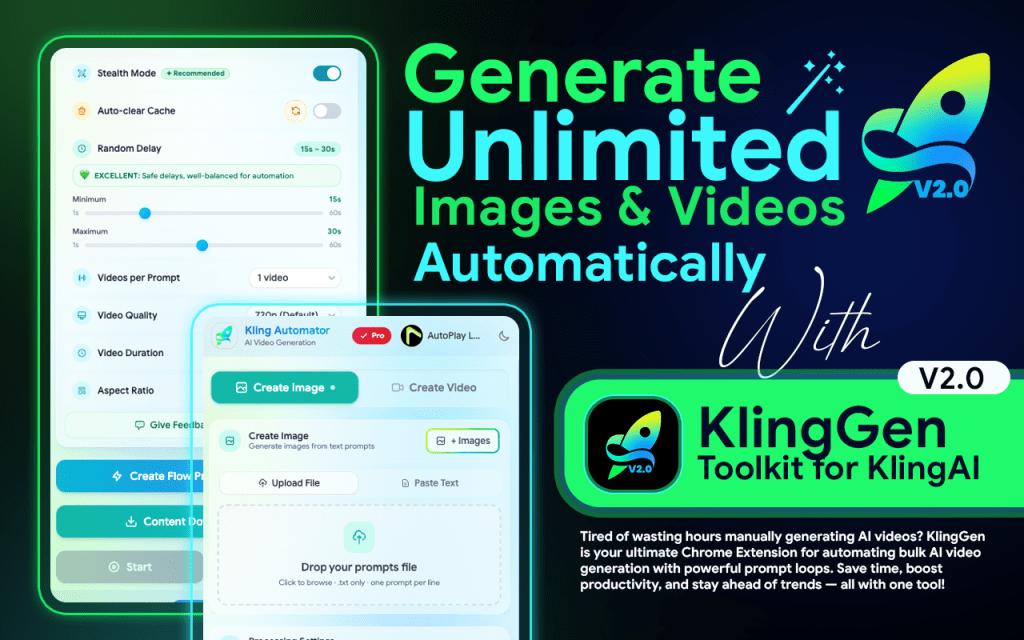
Welcome to the future of high-speed content creation. KlingGen is a powerful automation extension built for AI Videos and Images generating that removes repetitive manual work from your creative process.
Instead of spending hours entering prompts, uploading individual images or reference images, and downloading results one by one, KlingGen handles the entire workflow for you. Whether you need to run bulk image batches or mass video generation, this tool transforms a tedious task into a seamless, quick experience. By automating the heavy lifting, KlingGen allows you to scale your AI content production effortlessly, giving you back the time to focus on your next big idea.
Bulk AI Video & Image Generator
KlingGen is the ultimate automation tool designed to turn the Kling AI platform into a high-speed production system. Instead of manually clicking through every prompt and download, KlingGen automates the entire journey from start to finish. You can easily generate images and videos in bulk, manage complex workflows with a smart queue system, and let the extension handle all your file downloads automatically. Whether you are a digital marketer, an AI artist, or a social media creator, KlingGen removes the repetitive ‘one-by-one’ manual work. It allows you to scale your content production effortlessly, using advanced features like Stealth Mode and Auto-Download to keep your automation running smoothly and efficiently.
Installation
Getting started with KlingGen Automator is quick and easy. First, head over to the Google Chrome Web Store and type 'Klinggen Automator' into the search bar.

Once the extension appears in the results, click on it to open the details page, and then simply hit the Add to Chrome button. After the installation is complete, you will see the KlingGen icon appear in your browser’s top toolbar. To make sure the tool is always ready when you need it, click the puzzle piece icon and pin the extension so it stays visible for instant access whenever you visit the Kling AI website.
Yes, you can add the extension to your Chrome browser for free directly from the Official Web Store to begin setting up your automation workflows.
Currently, KlingGen is a Chrome Extension designed for desktop versions of Google Chrome or other Chromium-based browsers (like Brave or Microsoft Edge) that support web store extensions.
Chrome often hides new extensions inside the "Extensions" menu (the puzzle piece icon). Click that icon and select the "Pin" button next to KlingGen to keep it visible on your toolbar.
Usually, you don't need a full restart. However, it is a good practice to refresh the Kling AI website tab after pinning the extension to ensure all automation features load correctly.
Generation Mode
KlingGen offers two powerful generation modes—Create Image and Create Video—each designed to fit your specific creative needs.
In Create Image Mode, you can automate your workflow using three distinct methods: Text to Image, Integration to Image, or Paired to Image. If you are looking to bring your ideas to life with motion, Create Video Mode expands your options even further with four advanced methods, including Text to Video, Frame to Video, Integration to Video, and Paired to Video. Simply select the mode that matches your project, and KlingGen will handle the repetitive steps, allowing you to generate high volumes of content with precision and speed.
Yes! You can easily toggle between modes depending on what you need to generate. KlingGen is designed to handle both workflows seamlessly within the extension.
Integration Mode uses multiple reference images to guide the style of a single generation, while Paired Mode matches specific individual images with their own unique prompts—ideal for scene-by-scene storytelling.
No. In Text to Video mode, you only need your prompt list. KlingGen will feed those text descriptions into the AI engine and generate the videos automatically.
Each mode has its own optimized settings. It is a good practice to double-check your processing settings whenever you switch from Image to Video generation to ensure the best results.
Create Image Mode
KlingGen offers three powerful ways to automate your AI image generation, designed to fit any creative project.
- Text to Image:The fastest way to generate a massive volume of high-quality images from scratch. Instead of manually typing one prompt at a time on the Klinggen, you can simply paste a full list of descriptions directly into the text area or upload a dedicated prompt file. This allows you to automate hundreds of generations in a single session.
- Ingredients Mode: By uploading multiple reference images as “visual ingredients,” you provide the AI with a clear recipe for colors, lighting, and composition. Once you enter your subject prompt, KlingGen uses those references to ensure every new image matches your desired idea.
- Pair Mode: It allows you to match every individual image you upload with its own unique, dedicated prompt. This makes it perfect for complex storytelling; if you have ten different scenes, you can upload them all and give each one a specific instruction for transformation or editing.
Yes! You can adjust your processing settings globally or for specific tasks before starting the automation to ensure your images are in 16:9, 9:16, or 1:1 format.
KlingGen is built for scale. You can upload dozens of images in Paired Mode, and the extension will systematically process every single pair without you needing to click "Generate" for each one.
Depending on your version, uploading a new file will typically append the new prompts to your existing list or refresh the queue. This makes it easy to stack multiple projects into one long automation session.
You can add as many prompts as you need! KlingGen is built for high-volume automation, allowing you to paste long lists or upload prompt files to generate large batches of images without stopping.
Absolutely. Even after you’ve sent your tasks to the queue, you can use the Queue Manager to fine-tune your text or change settings before starting the automation.
Create Video Mode
KlingGen takes the complexity out of AI video generation by offering four specialized modes to automate your storytelling. Whether you are starting from a simple text prompt or a fully designed storyboard, these tools ensure your video production stays fast and consistent.
Text to Video: This is the quickest way to generate content. Simply upload or paste your list of prompts, and the automator will feed them into the engine one by one. It is perfect for creating large batches of videos from scratch without any manual clicking.
Integration Mode: If you want a specific “look” for your videos, use Integration Mode. You can upload multiple reference images to act as visual ingredients. The AI uses these references to maintain a consistent style, character, or environment across all the videos you generate.
Paired Mode: Designed for serious storytellers, Paired Mode matches every individual image with its own unique animation prompt. This allows you to control the movement and action for every specific scene in a sequence, making it the ultimate tool for AI films and social media series.
Frame Mode: This mode allows you to set a clear beginning and end for your video. By uploading a starting frame and an ending frame, you can test how different prompts change the transition between the two, giving you total creative control over the final motion.
Yes! Using Text to Video mode, you can paste or upload a list of prompts. KlingGen will automatically feed them into the AI engine and generate a video for each description without any manual work.
Yes! You can upload all 20 images at once, give each one a specific motion instruction, and KlingGen will automate the generation of the entire story for you.
There is no strict limit. You can add dozens or even hundreds of prompts to your queue and let the extension process them while you focus on other tasks.
No. If you enable Auto Download in the settings, KlingGen will automatically save every completed video directly to your computer.
This mode allows you to lock in your starting and ending images. You can then run multiple different prompts against those same frames to see which movement or style looks best for your scene.
Multi reference Mode
The Multi Image Reference mode gives you complete creative control by allowing you to use existing images to guide new generations.
Simply upload your reference assets to the extension and use the drag-and-drop feature to instantly add them to your prompts, eliminating the need for repetitive uploading. You can choose between two powerful settings: Ingredients, which lets you layer multiple reference images one by one to mix styles or subjects into a single result; or Pair, where you match specific prompts to specific images line-by-line (e.g., Image 1 with Prompt 1). This flexible system ensures that your automated image production is both highly precise and incredibly efficient.
Absolutely. Pair mode is perfect for this. You can match "Image 1" with "Prompt A" and "Image 2" with "Prompt B" in a single list, ensuring each specific image gets the exact instruction it needs.
Using reference images actually helps improve quality and consistency. It gives the AI a visual "anchor" to follow, which often leads to more professional and predictable results compared to using text alone.
As long as your browser session is active, your uploaded reference assets stay ready in the extension for quick use, allowing you to build multiple queues without starting from scratch.
Use Ingredients when you want to combine elements from different photos—like taking the lighting from one image and the character style from another—to create a brand-new, consistent result.
Task Queue Manager
To monitor your active projects, click the Manager and Open the pop-up window. This dashboard provides real-time visibility by showing the progress of every video in your line-up.
All prompts are managed through the Queue System. Once prompts are added, they appear in the Queue Panel.
From here you can: Edit prompts , Update settings , Reorder tasks • Manage large prompt lists easily
The Prompt Manager window makes it even easier to organize and edit prompts.
Yes! Before you hit the "Start Automation" button, you can use the Queue Manager to update settings like aspect ratio or quality for any individual task in your list.
You have total control. The Queue System allows you to reorder tasks easily, so you can decide exactly which images or videos KlingGen processes first.
The Manager is designed to handle large-scale workflows. You can scroll through long prompt lists and manage hundreds of tasks without the interface slowing down.
Absolutely. If you spot a typo or want to add more detail to a description, you can edit your prompts directly within the Queue Panel before the automation begins.
Processing Setting
The Processing Settings serve as the control center for your automation, allowing you to fine-tune exactly how the extension operates.
To keep your browser running smoothly during large batches, the Auto Clear Cache feature prevents lag by managing memory, while Stealth Mode and Random Delay work together to simulate human-like actions and avoid server rate limits. You can also fully automate your output with Auto Download, which ensures every creation saves instantly to your device as it finishes. Beyond performance, you have total creative control: simply select your preferred AI Model, Aspect Ratio, and the number of images or videos per prompt. Once configured, you can apply these settings globally to your entire queue to ensure a consistent and efficient generation process from start to finish.
Using both features is the best way to protect your account. They work in tandem to vary the timing between actions, making the automation look like a real person is clicking the buttons, which helps you avoid being flagged for automated activity.
No. This feature only clears the temporary browser data that builds up during a long session. Your prompts in the queue and your downloaded images stay perfectly safe.
Yes. You can adjust the aspect ratio (like 16:9 for YouTube or 9:16 for TikTok) within the settings for each mode to make sure your content is ready for the right platform.
You only need to enable it once in your settings. Once it is active, the extension will automatically save every successful generation to your computer until you decide to turn it off.
Start Generate
Once your prompts are refined and your settings are locked in, you move to the final stage: Start Processing. Clicking this button transitions the extension from the setup phase into active execution,
where it begins communicating with the Kling AI interface to generate your videos. The Automator will systematically work through your queue, handling the repetitive clicking and waiting on your behalf. Once you trigger the processing, let the extension handle the heavy lifting of bulk video production.
After you have finalized your prompts in the Task Queue, simply click the yellow "Start Processing" button at the bottom of the extension panel to begin.
Yes. Most versions of the automator will replace the "Start processing" button with a "Stop processing" option once processing begins. You can click this at any time to halt the generation after the current video finishes.
The extension will usually provide a status update or stop its activity once the final prompt in your queue has been submitted to the Kling AI generation engine.
The KlingGen Automator is built to be resilient. If the "Start Processing" loop encounters a temporary system error, it will typically wait for a few seconds and retry the prompt until it successfully moves to the next item in your list.
Bulk Content Downloader
The Content Download Manager is a powerful feature designed to simplify how you save your finished work. When enabled, a dedicated download panel appears directly within the interface,
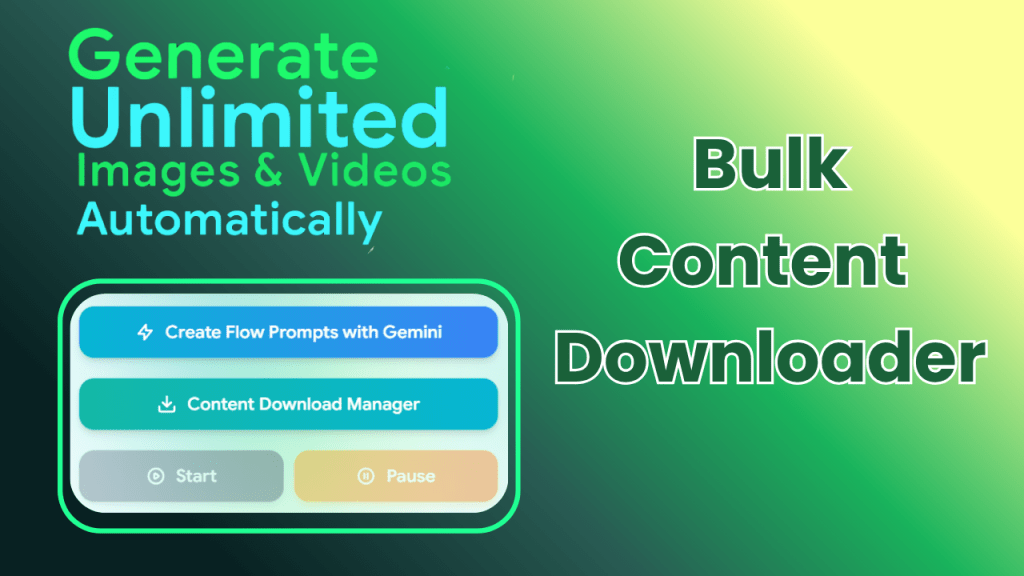
providing a centralized view of all your generated assets. Rather than the tedious task of saving files one by one, this manager allows you to select multiple images at once and download them as a single batch. This organized approach significantly speeds up your workflow and makes managing large volumes of generated content both faster and more convenient.
Once your generations are complete, look for the dedicated download panel within the KlingGen interface. It centralizes all your results so you don't have to hunt for individual files.
Yes! The manager allows you to select any combination of generated assets—whether they are static images or cinematic videos—and download them all in one go.
The downloader is designed to keep your files organized. By downloading them in a batch, you can easily move them to your project folders without losing track of your workflow.
No, you can select as many as you need. Whether you have five generations or fifty, the manager handles the batch process efficiently to save you time.
Create Your AI Prompts
This feature uses the Gemini API to help users brainstorm and generate high-quality prompts. It includes customizable options for Role (e.g., Stock Photography, Digital Artist), Category (e.g., Technology, Nature & Landscapes), Length, and Creativity Level.
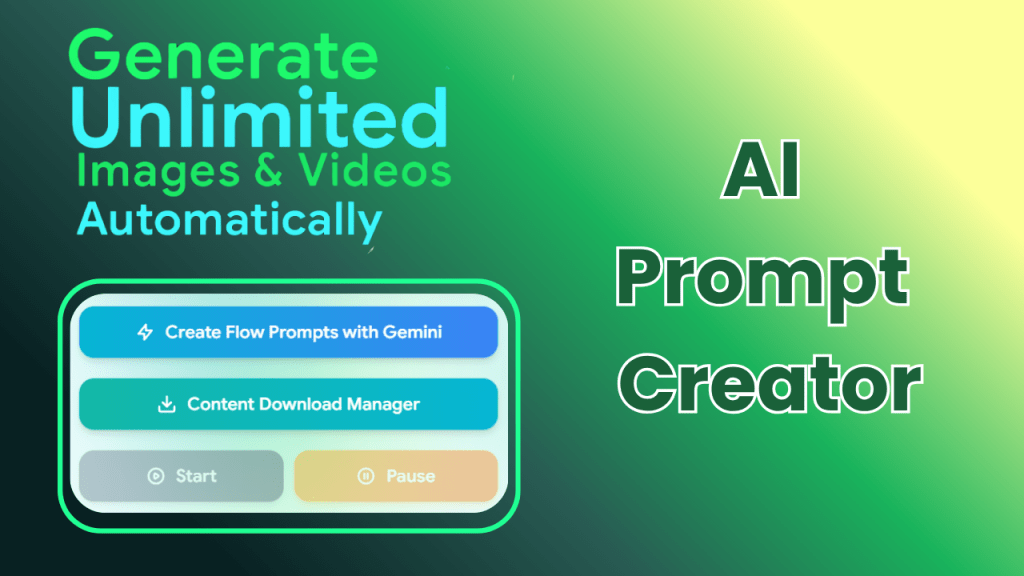
To use this feature, you must first connect it to Google’s AI services by navigating to the "AI Prompt Creator" tab and entering a Gemini API Key.
Ensure your API key is correct and has not expired. Most issues arise from using an incorrect key or a Google account that does not have access to the Gemini API.
Yes. Once the AI generates the expanded prompt, it appears in your text box where you can manually tweak, add, or remove details before saving it to your queue.
It is a great time-saver! While manual prompting gives you total control, the Create AI Prompt tool is excellent for discovering new styles and ensuring your prompts are descriptive enough for the AI to produce high-quality visuals.
More About Project
Video Tutorial
Before using this tool, you should watch this tutorial video.