

If you need help or have any issues, our support team is here for you. We've moved our support to our Discord Server, where you can get faster answers, browse solutions to common problems, and connect with the community. Follow the simple steps below to get the help you need.
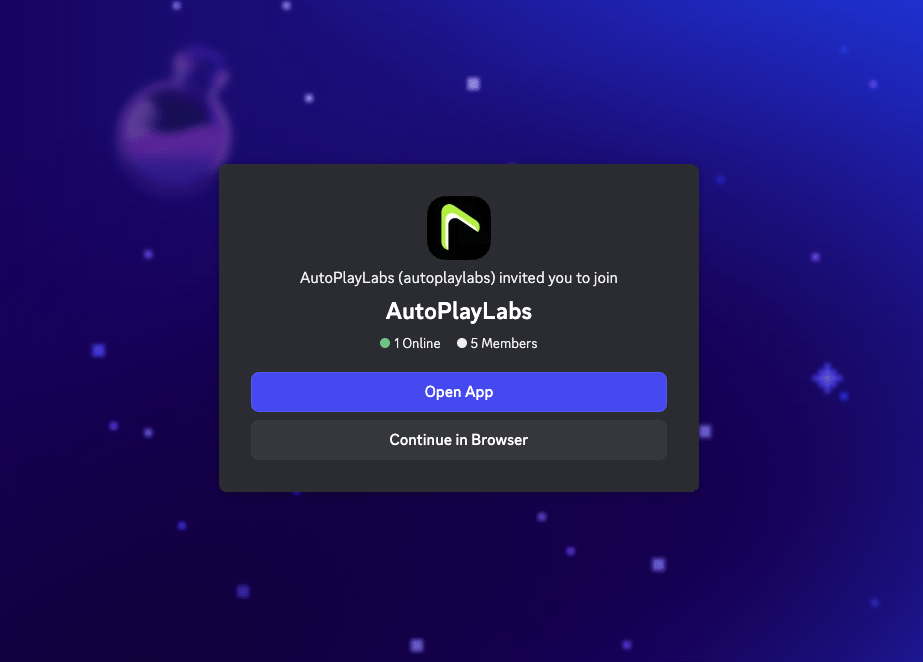
Step 1: Join the Discord Server
Click the button above or use this link to join: https://discord.com/invite/cz9CDZgZD7. Once you're in, accept the rules in the welcome-and-rules channel to unlock the rest of the server.
Step 2: Find the Right Channel for Your Problem
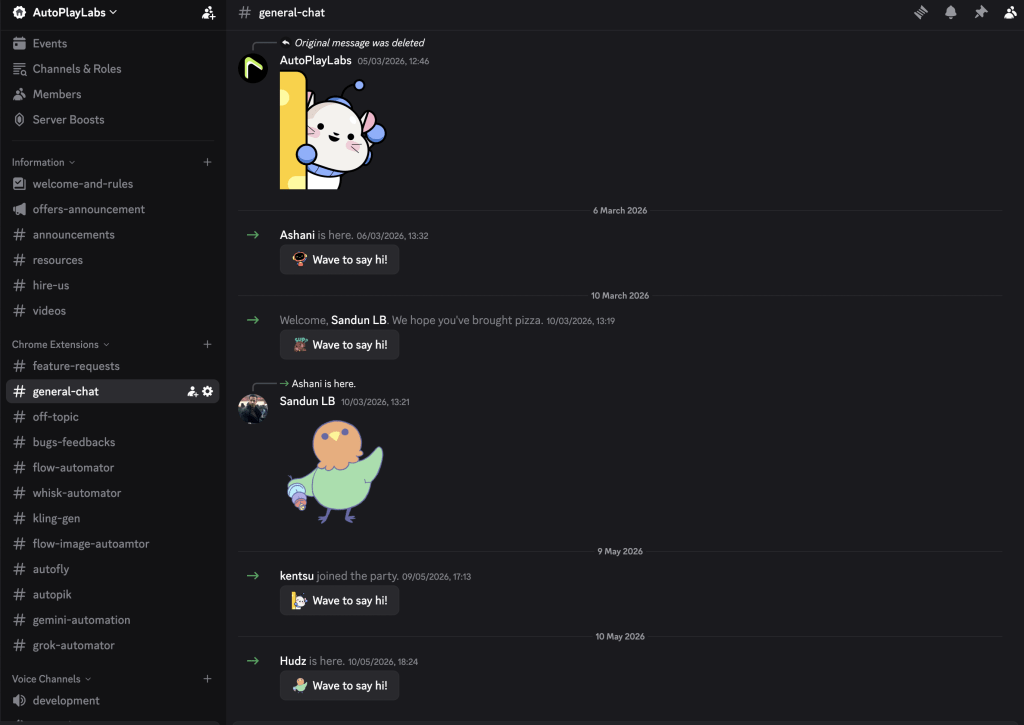
Our server is organized so every type of question has a home. Here's how to use each section:
📌 Information
- welcome-and-rules — Start here. Read the server rules and guidelines.
- offers-announcement — Latest deals, discounts, and special offers.
- announcements — Important updates and news about our extensions.
- resources — Guides, tutorials, and helpful documents.
- hire-us — Reach out if you'd like to work with us on a custom project.
- videos — Video tutorials and walkthroughs.
🧩 Chrome Extensions
Each extension has its own dedicated channel. Post your tool-specific questions in the matching channel so the right people can help you faster:
- feature-requests — Suggest new features or improvements.
- general-chat — General discussion about our extensions.
- off-topic — Casual, non-support conversation.
- bugs-feedbacks — Report bugs or share feedback.
- flow-automator — Help and chat for the Flow Automator extension.
- whisk-automator — Help and chat for the Whisk Automator extension.
- kling-gen — Help and chat for Kling Gen.
- flow-image-automator — Help and chat for Flow Image Automator.
- autofly — Help and chat for Autofly.
- autopik — Help and chat for Autopik.
- gemini-automation — Help and chat for Gemini Automation.
- grok-automator — Help and chat for Grok Automator.
🎫 Support Ticket
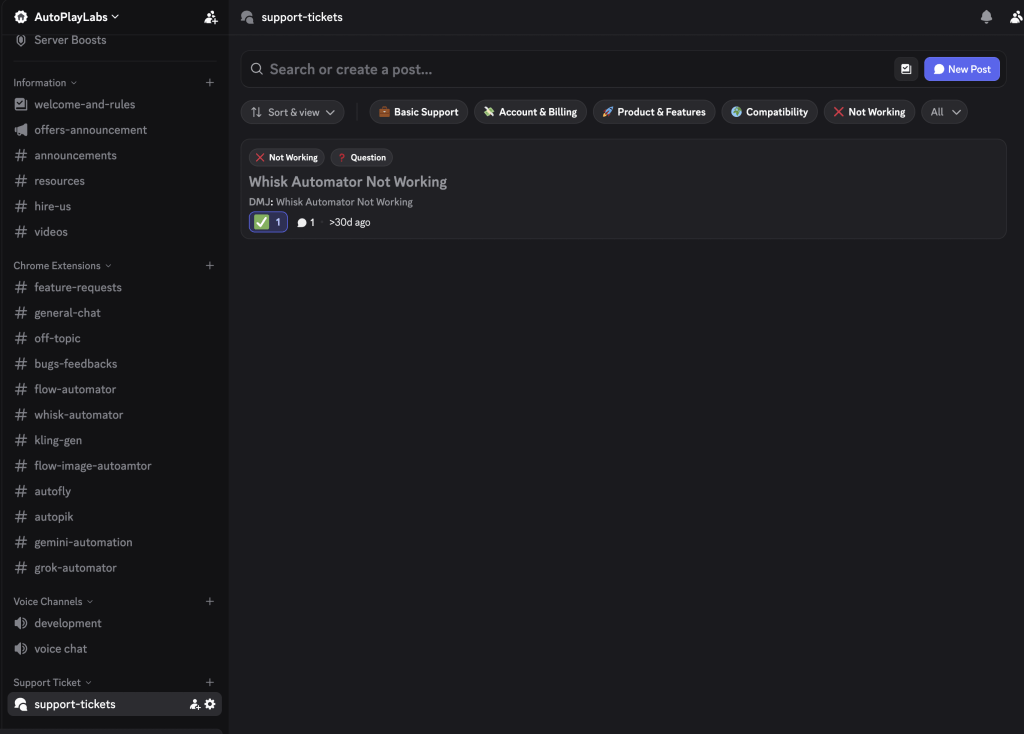
- support-tickets — For major questions or problems that need direct, one-on-one help from our team. (See the step-by-step guide below.)
🔊 Voice Channels
- development — Voice channel for development discussions.
- voice chat — Hang out and talk with the community.
Step 3: How to Handle Your Problem the Right Way
Choosing the right channel gets your issue solved faster. Use this quick guide:
-
Quick question about a specific tool?
Post in that extension's channel (e.g., whisk-automator) or in general-chat. -
Found a bug or want to give feedback?
Use bugs-feedbacks. -
Have an idea for a new feature?
Post it in feature-requests. -
Major issue that needs direct support?
Create a post in support-tickets (steps below). -
Sensitive issue (payment, billing, or account)?
Do not post publicly — email us instead (see below).
Step 4: How to Post a Support Ticket
-
Open the Support Tickets Channel
Find the support-tickets channel near the bottom of the channel list. -
Create a New Post
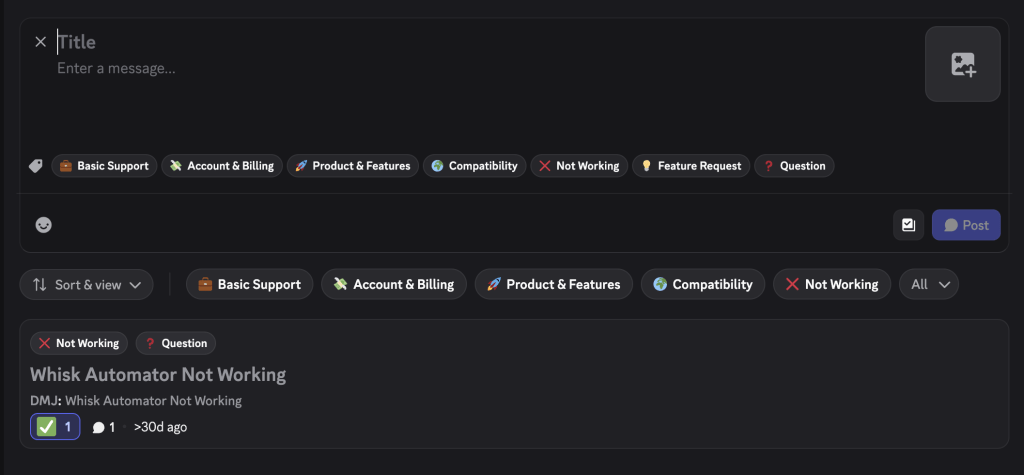
Click the New Post button in the top-right corner. -
Add a Clear Title
Use a descriptive title (for example: "Whisk Automator Not Working"). -
Choose the Right Tags
Select tags that match your issue: Basic Support, Account & Billing, Product & Features, Compatibility, Not Working, or Question. -
Describe Your Issue
Be as specific as possible and attach a screenshot or file if it helps. -
Submit Your Post
Post your message and our team will get back to you as soon as possible.
⚠️ Important: Posts in the support-tickets channel are visible to all users on the Discord server. Please do not enter personal or sensitive information (such as passwords, payment details, or account data). For sensitive issues, email us instead at [email protected].
For Sensitive Issues, Use Email
Please do not share sensitive information publicly on Discord. For anything involving payments, billing, or account-related details, contact us directly by email at [email protected]. This keeps your private information secure.
Troubleshooting Tips
If you're having trouble posting or can't see a channel, try refreshing Discord or restarting the app. Make sure you've accepted the rules in welcome-and-rules to unlock all channels. If the issue persists, reach out to us at [email protected].
Need more help? We're always happy to assist!