

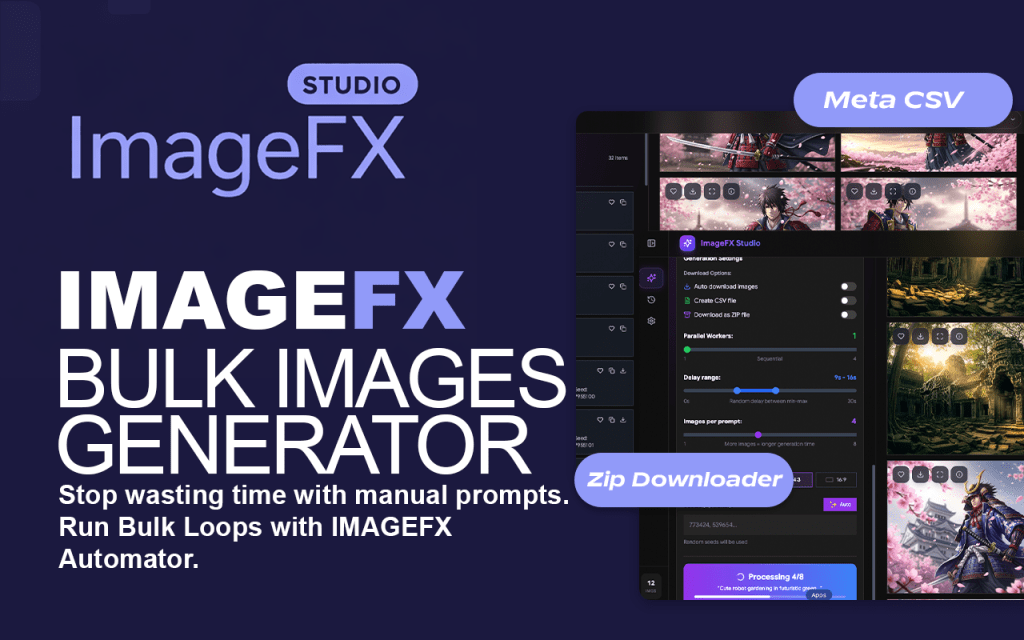
In the competitive landscape of digital content, volume and speed are the new benchmarks for success. Whether you are a stock contributor aiming for thousands of uploads or a marketing agency scaling visual campaigns, manual “one-by-one” generation is a relic of the past.
Enter ImageFX Studio—the advanced evolution of AI automation. This isn’t just a bulk downloader; it is a full-scale production suite that integrates multi-threaded parallel processing directly into Google Labs ImageFX. Today, we’ll show you how to transform your creative workflow from a slow crawl into a high-speed studio operation.
The New Standard: ImageFX Studio Overview
Google Labs’ ImageFX is renowned for its photorealism, but its interface is built for casual play. ImageFX Studio bridges the gap, turning that raw power into a professional engine. With our innovative automation architecture, you can now manage hundreds of prompts, track real-time progress, and utilize parallel processing to generate assets 10x faster than the standard user.
Set Prompts
Efficiency begins with organization, and the Prepare Prompt interface in ImageFX Studio is built to handle massive creative data without the friction of manual entry.
You can power the engine in three seamless ways: use Bulk Upload to import a CSV or TXT file for large, pre-planned batches, choose Direct Paste to drop a list of prompts straight from your clipboard into the studio, or rely on On-the-Fly Entry to type and refine ideas directly within the extension UI. Pro tip: once your prompts are loaded, simply use the Clear All Tasks button to instantly prune your queue or reset for a fresh creative direction.
While the extension is built for bulk, we recommend loading batches of 50–100 prompts at a time to maintain optimal browser performance and ensure you can monitor the generation quality in real-time.
Absolutely. You can include descriptive keywords or "chip" terms directly within your text prompts (e.g., "A futuristic city, cyberpunk style, neon lighting"). The Automator will pass these exact strings to ImageFX just as if you had typed them manually.
Yes. You can refine or modify individual prompts directly within the queue before you trigger the final processing.
Activate Parallel Generation
Once your prompts are loaded, clicking "Generate Queue" ignites the Studio’s core engine. Unlike basic tools, ImageFX Studio utilizes Parallel Multi-Threading, allowing the system to handle multiple generation tasks at once.
The tool automates the entire lifecycle: entering the prompt, adjusting settings, triggering the generation, and capturing the output.
Simply click the "Start Processing" button. The Studio will automatically begin cycling through your loaded queue, handling all clicks and entries for you.
Yes, the tool features a "Pause" button that allows you to halt the current run, and a "Resume" button if you wish to cancel the remaining tasks entirely.
Yes. Upon launching, the Studio gives you the option to Resume an unfinished queue or Initialize a brand-new set of prompts.
Not at all. Parallel processing only affects the speed of delivery; each image is still rendered at the maximum fidelity provided by Google’s models.
Prompt Library
Instead of starting from zero, you can access a curated collection of high-performance frameworks designed specifically for the ImageFX model.
Whether you are targeting photorealistic stock photography, cinematic concept art, or high-conversion marketing visuals, the library provides the “DNA” for stunning results, allowing you to generate an entire series of diverse visuals from just a few core ideas..
Not at all. The library is designed to turn simple keywords into professional, descriptive prompts using pre-optimized frameworks.
Absolutely. We constantly update the library to ensure every framework takes full advantage of Google’s newest photorealism and "expressive" capabilities.
Yes. You can select a "Base Style" from the library and apply it across your entire batch to ensure visual consistency while maintaining unique subject matter.
No. The tool handles the complex descriptive language for you.
Generate Queue
The Generate Queue is the command center of ImageFX Studio. It transforms your raw list of ideas into a systematic production line. This feature lets you generate your creative tasks, so the AI works through your backlog with surgical precision.
By managing your workflow through a structured queue, you eliminate the chaos of manual entry and ensure a unified brand experience across every batch you generate. It is the ultimate tool for creators who need to maintain high-volume output without constant supervision.
After you have finalized your prompts in the Task Queue, simply click the yellow "Generate Queue" button at the bottom of the extension panel to begin.
The interface provides an "Important Reminder" not to minimize the window or switch browser tabs while the automation is active to ensure the process isn't interrupted.
The Queue automatically moves completed tasks to a "Finished" state, providing a clear visual distinction between what is done and what is pending.